By Dsign Digital Technologies, makers of Tadu RemoteUpdated October 2026
About ten minutes, once. You need the TV remote, your phone, and someone in the room with the TV: you, or a person who can read a code to you.
Before you start
Tadu Remote is free on the Amazon Appstore for Fire TV. On your phone, install Tadu Remote from the App Store or Google Play and create your account; the trial starts inside the app after you pair the TV, not before. Then follow the nine steps below; the words in quotes are what the TV will say.
Tadu runs on Fire TV devices with Fire OS. Newer models on Amazon’s Vega OS (Fire TV Stick 4K Select, Fire TV Stick 4K 3rd generation, Fire TV Stick HD 2nd generation) can’t install it yet. Which TVs work
The nine steps
01 / StepStart here
Install the TV app
On the Fire TV, search the Amazon Appstore for “Tadu Remote”, install it and open it. The TV app is free.
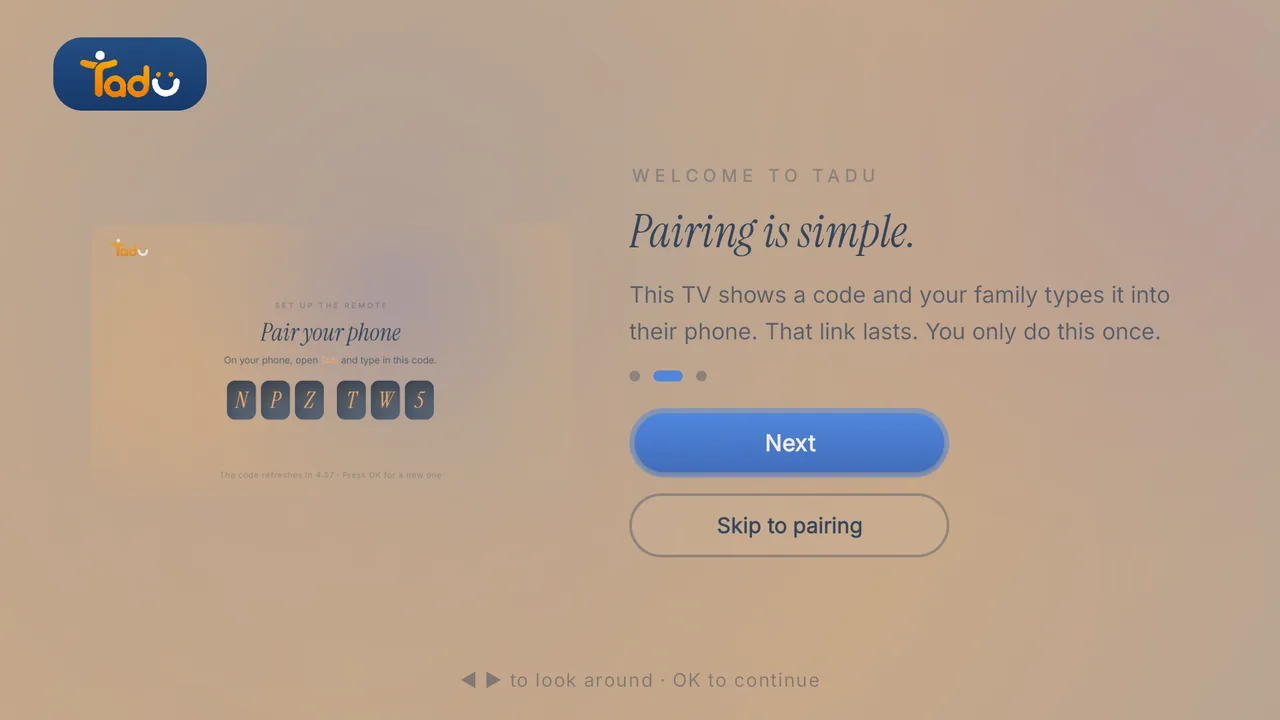
Three short screens: “Your family, one button away.”, “Pairing is simple.” (on Fire TV: “This TV shows a code and your family types it into their phone. A quick 4-digit code then links the remote. You only do this once.”) and “Private, always.” Press “Skip to pairing” or “Show the pairing code”.
03 / Step
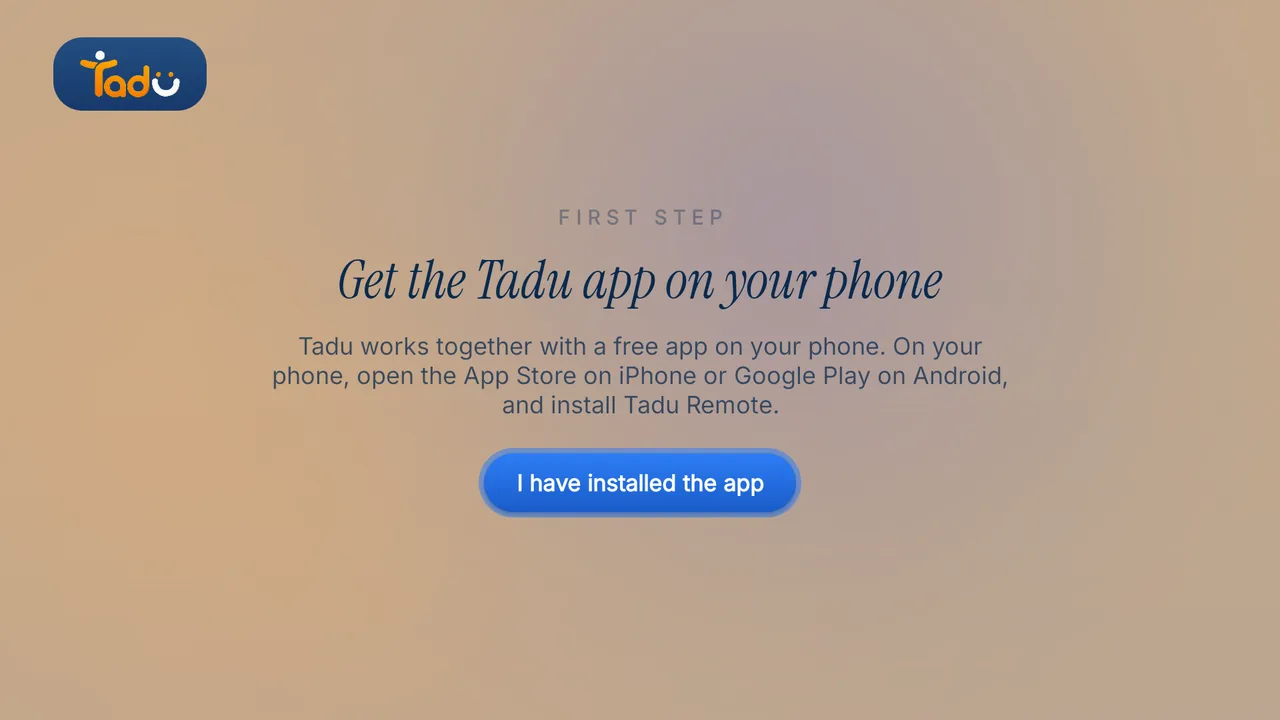
"Get the Tadu app on your phone."
The TV will not continue until you press “I have installed the app” (the button enables after a moment). A QR code on the screen points to taduremote.com/app. On your phone, install Tadu Remote from the App Store or Google Play and create your account.
04 / Step
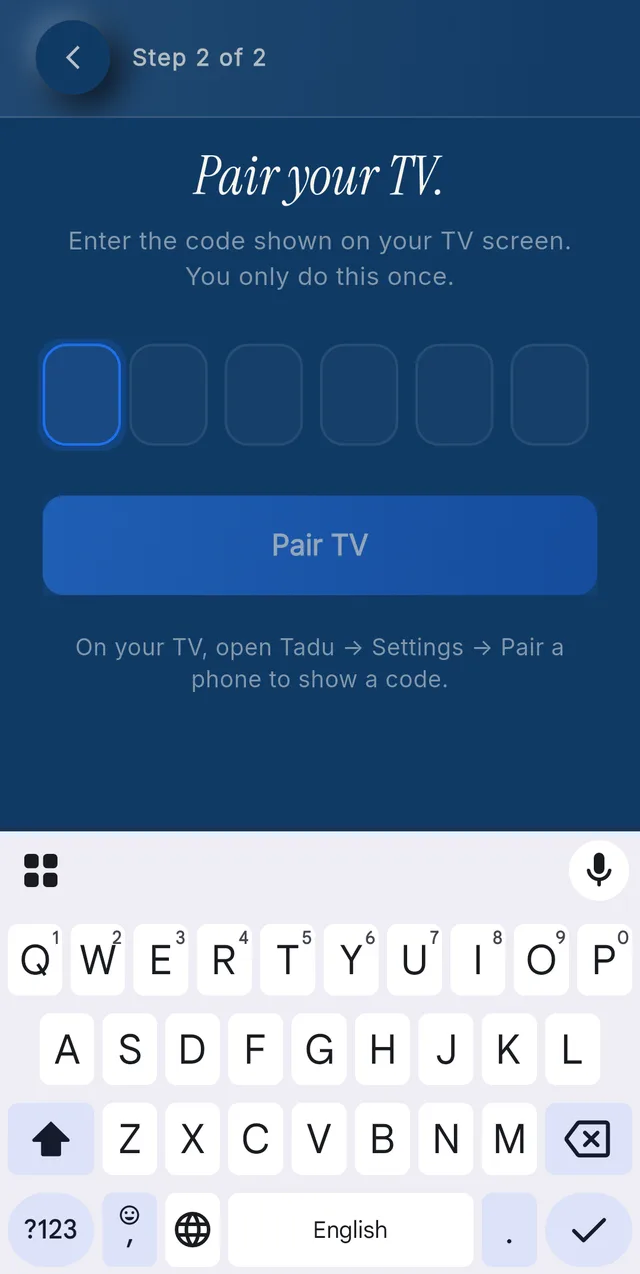
Type the 6-character code into your phone
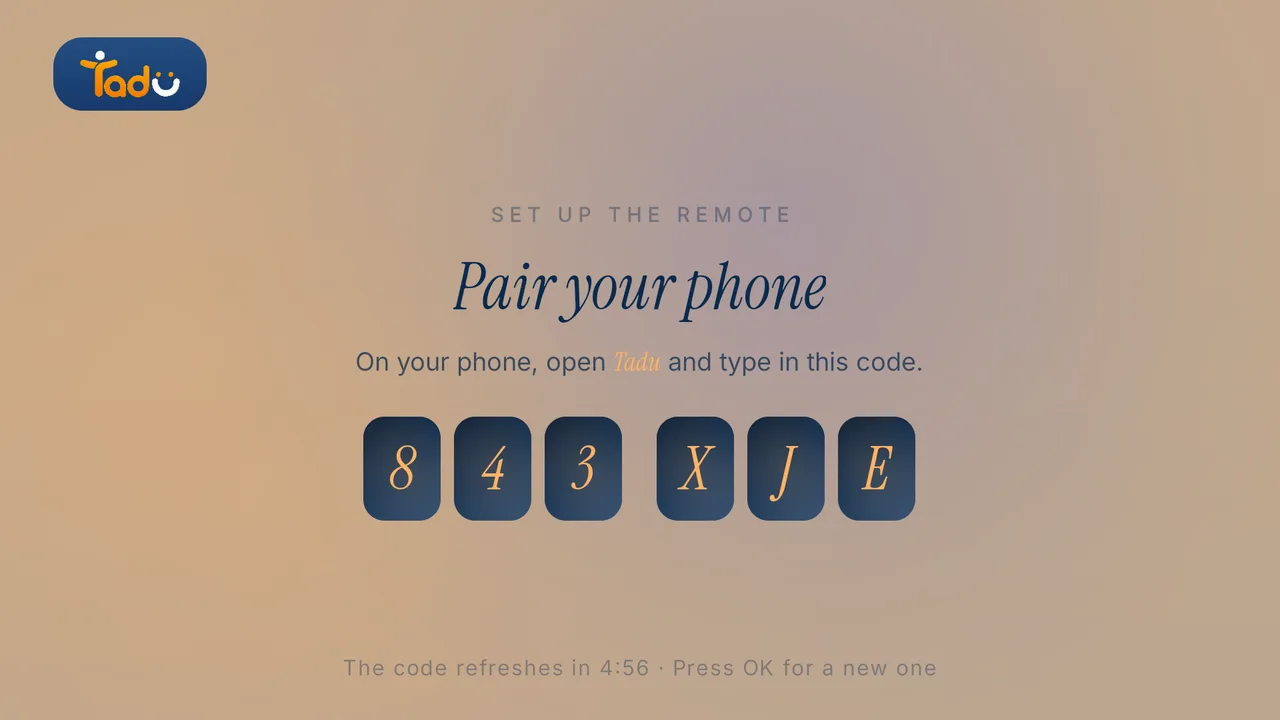
The TV shows “Pair your phone” with a 6-character code in two groups of three: letters and digits, and capitals don’t matter. It refreshes every 5 minutes (“The code refreshes in 4:56 · Press OK for a new one”).
On your phone: Pair a new TV, “Enter the code shown on your TV screen”, then Pair TV. If you are not in the room, someone at the TV reads the code to you.
05 / Step
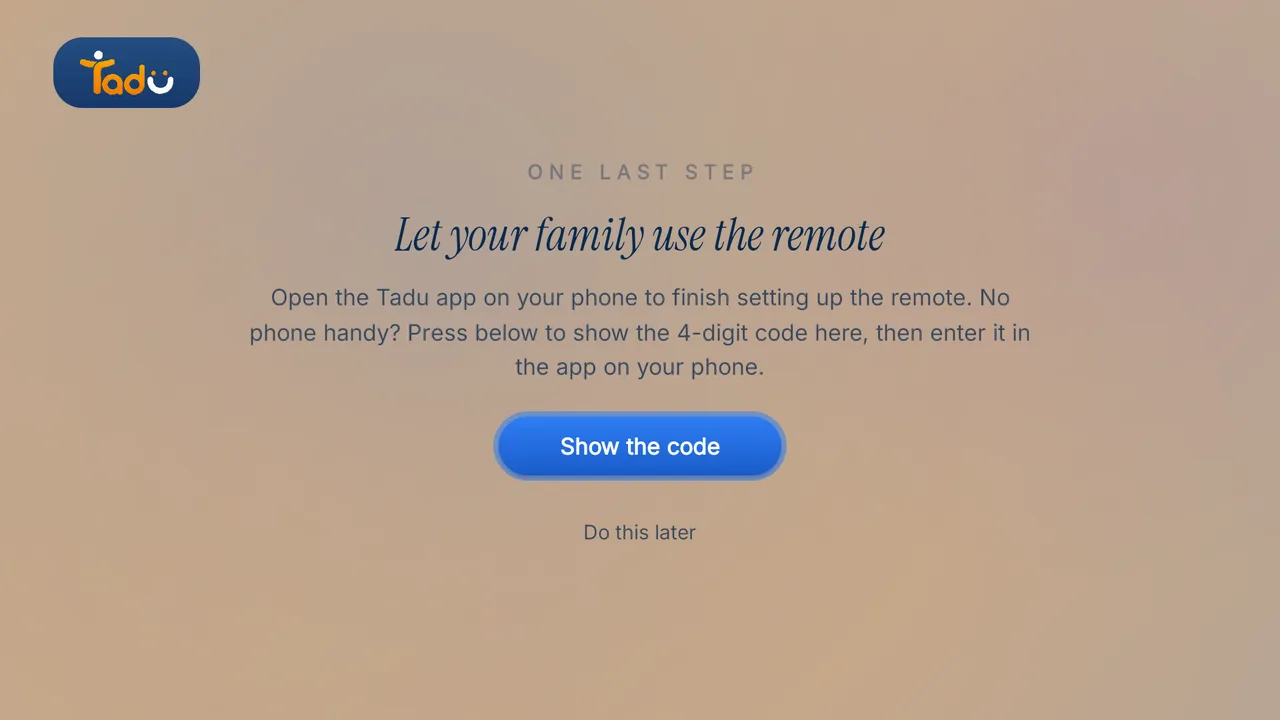
"Let your family use the remote" (the 4-digit code)
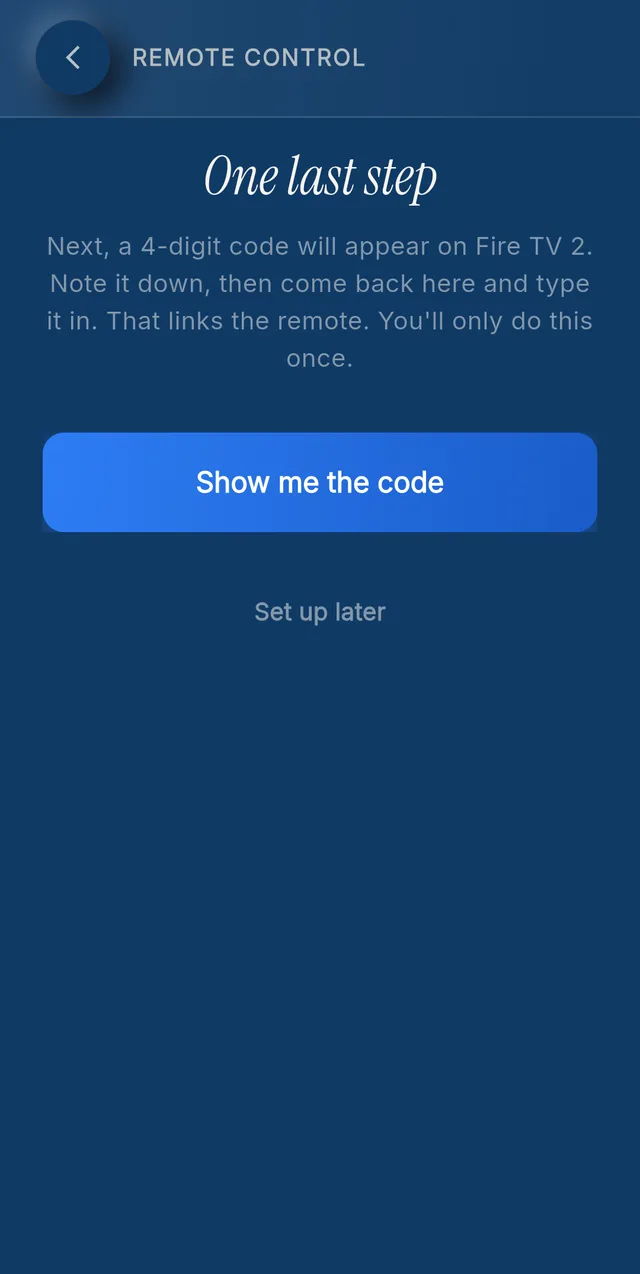
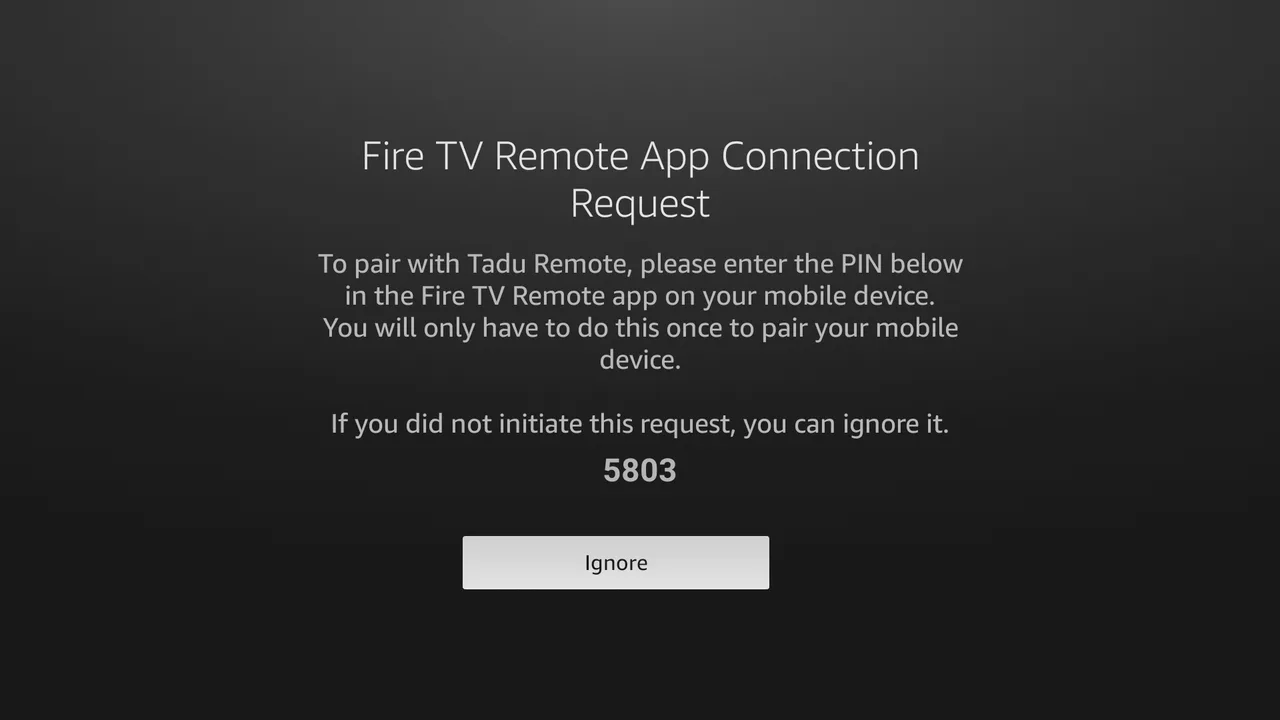
Fire TV links the remote through Amazon’s own pairing. Your phone shows “Show me the code”; the TV displays a 4-digit code in Amazon’s own box; type it in the phone app, never on the TV. You only do this once.
If the TV shows this step first, press “Show the code”, or “Do this later” and finish it from your phone.
06 / Step
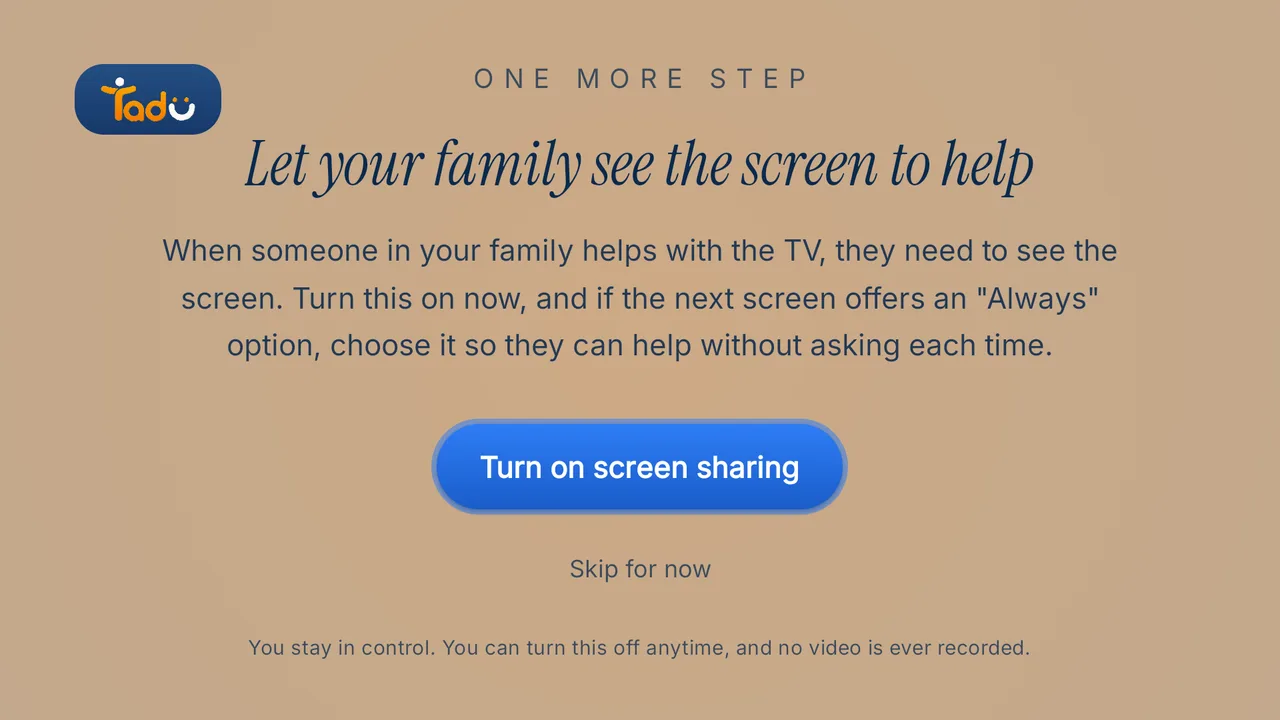
"Let your family see the screen to help."
Press “Turn on screen sharing”. Fire OS shows its own screen-capture box; if it offers “Always”, choose it so your parent is not asked by the system each time. Tadu’s own Allow card still appears for every session.
The screen says it plainly: “You stay in control. You can turn this off anytime, and no video is ever recorded.”
07 / Step
The short tour
“How your TV works now”: your family can help from their phone with your OK; the OK button does the helpful thing; “Press Call for help, or hold OK for two seconds.”; “They can only help when you say yes.”; photos, notes and reminders appear gently over the programme. Press “Start watching”.
08 / Step
Notifications and anonymous usage
On newer Fire OS versions the system may ask to allow notifications; say yes so messages arrive. Tadu then asks “Help improve Tadu” (anonymous usage, no video, audio or messages): “Turn on” or “Not now”; either is fine.
09 / Step
Done
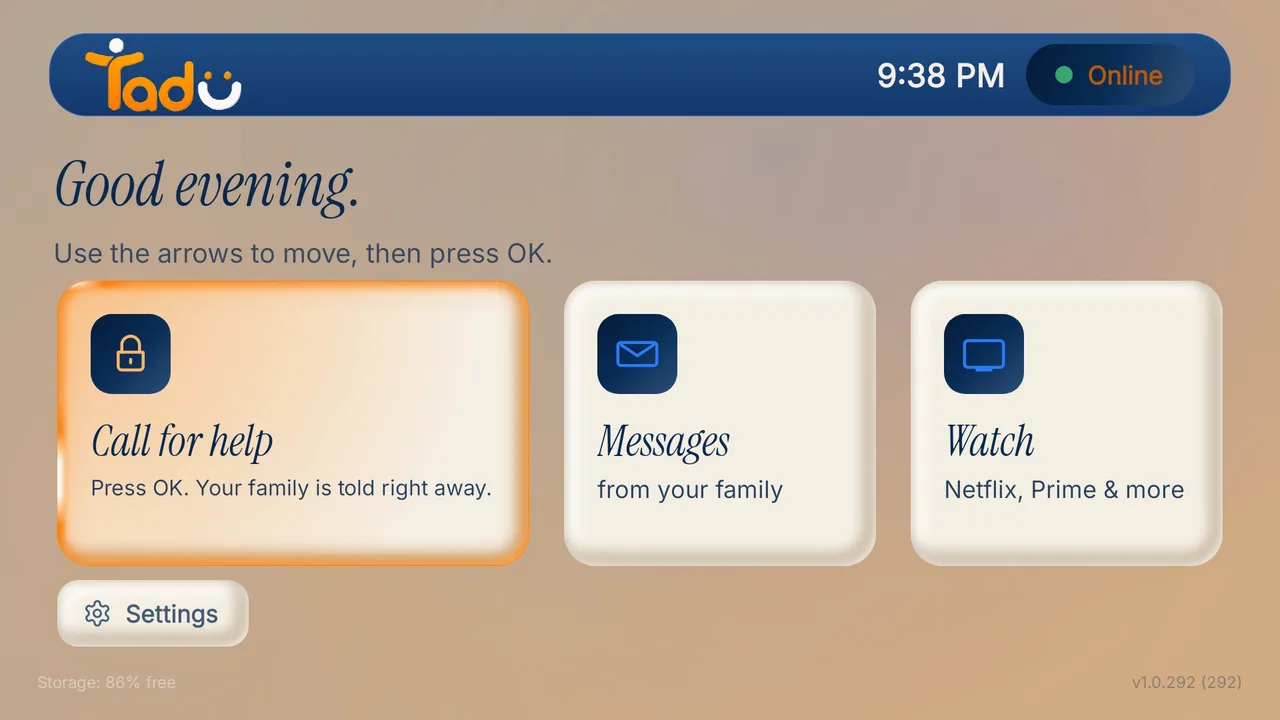
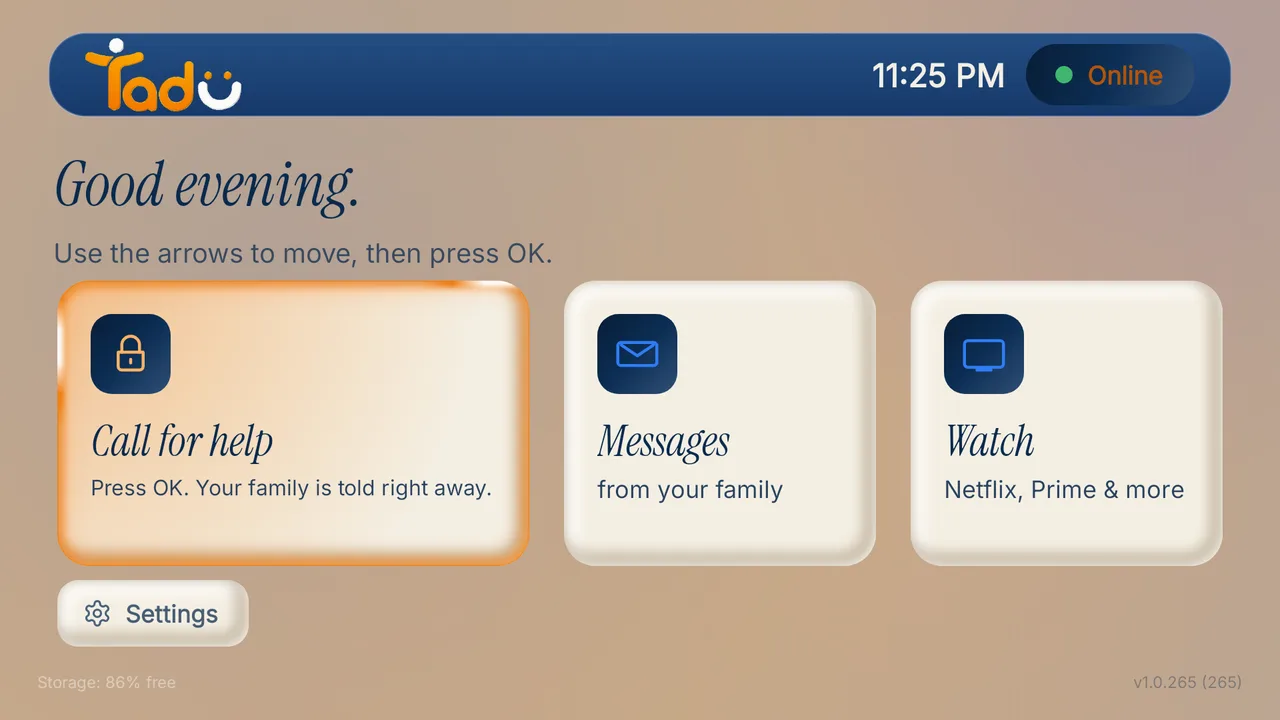
The TV home shows “Online” and a “Call for help” card. On your phone the TV appears as online, with “Start helping” ready.
What will your parent see when you first connect?
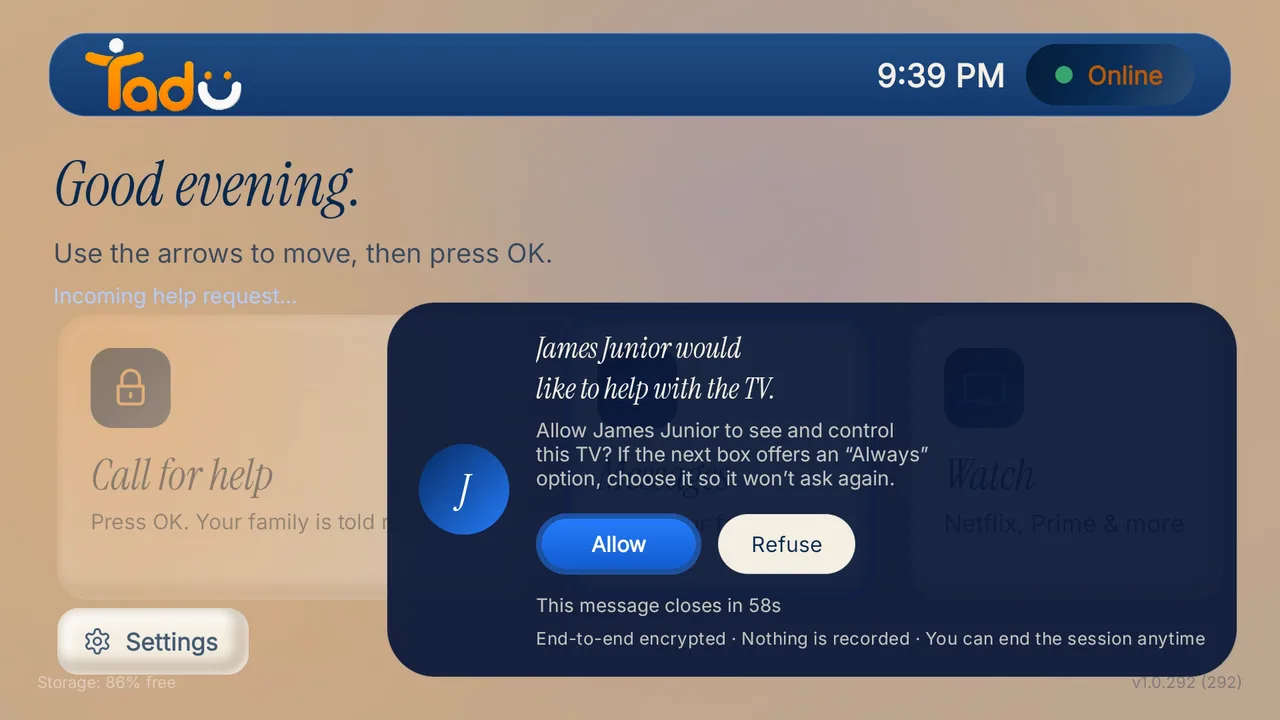
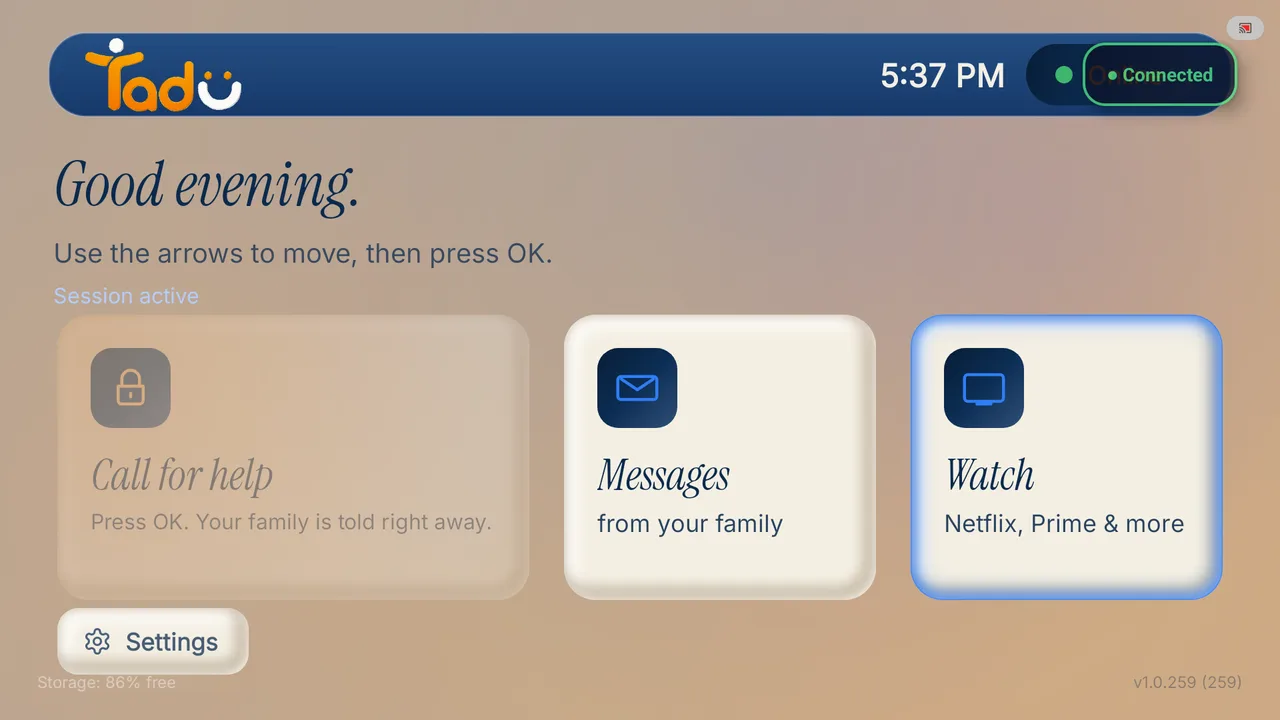
Their TV shows the consent card: “<your name> would like to help with the TV.” with Allow already selected, Refuse beside it, and “This message closes in 60s” counting down. After Allow, the TV says “Starting… choose Start now on the next box.” and Fire OS shows its own box with Start now, skipped if “Always” was chosen in step 6. Then the home shows “Connected” while you help. If nobody answers within 60 seconds, nothing starts.
Consent card
Connected
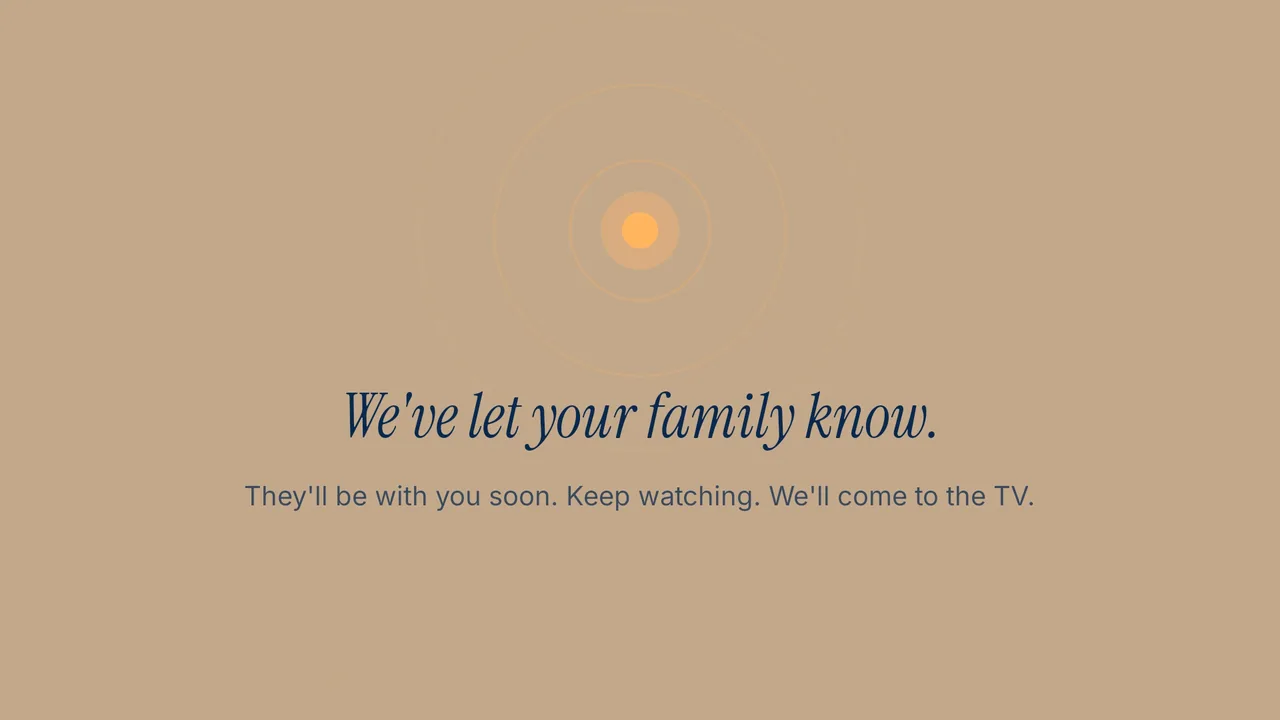
Call for help
What is different on Fire TV?
01 / Fire TV
No overlay permission
No “display over other apps” permission exists on Fire OS, so Tadu never asks for it.
02 / Fire TV
Messages as notifications
Messages arrive as Fire TV notifications.
03 / Fire TV
Live Cast is full screen
Live Cast is always full screen on Fire TV.
04 / Fire TV
The remote, by code
The remote is linked through Amazon’s 4-digit code rather than an Accessibility setting.
The 6-character code refreshes every 5 minutes. Press OK on the TV for a new one and type the new code into your phone. Letters and digits only; capitals do not matter.
The TV says it could not reach the server.
Check the TV's Wi-Fi: open the Fire TV settings, confirm the network is connected, then open Tadu again. The TV needs the internet to show a code.
The 4-digit code didn't work.
The TV says: "That code didn't work. A fresh code is on your TV. Try again." Read the new 4-digit code from Amazon's box on the TV and type it in the Tadu phone app, not on the TV.
I skipped screen sharing. Can I turn it on later?
Yes. Until you do, Fire OS shows its own box each time a session starts, and your parent chooses Start now. You can redo the step from Tadu's Settings on the TV, and choose "Always" in the Fire OS box when it appears.
Can I set it up from abroad?
Mostly. Everything on the phone side is yours. Someone at the TV has to install the app, press the buttons and read you the 6-character code and the 4-digit code; a sibling, a neighbour, or your parent on a video call. Physical presence at the TV is the security model: only someone who can see the TV can pair it.
 By Dsign Digital Technologies, makers of Tadu RemoteUpdated October 2026